
 USD / Language





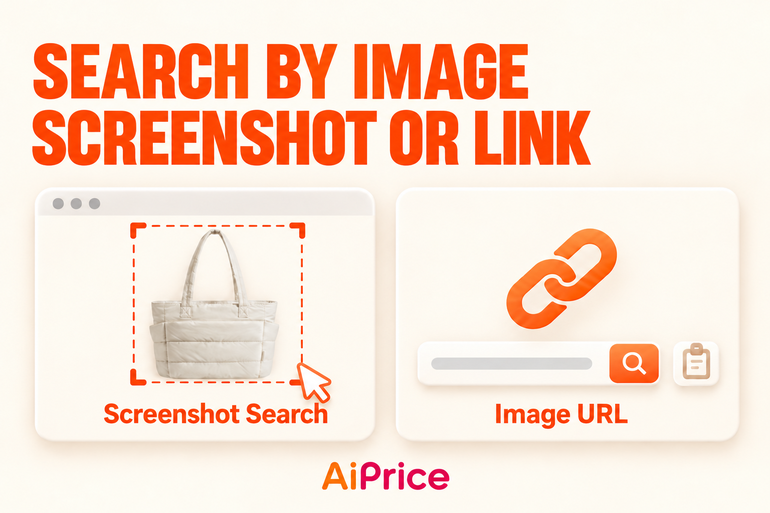
Right-Click Image Search: Find Products with Screenshots or Image URLs
Found a product you’d like to source while browsing a website? With AiPrice, you can search using a screenshot or an image URL—without saving the picture to your computer first.
Both options are available through AiPrice’s right-click image search tool. Here’s how to use them.
Open AiPrice from the right-click menu
With AiPrice installed and enabled, right-click on the webpage and open the AiPrice image search tool.
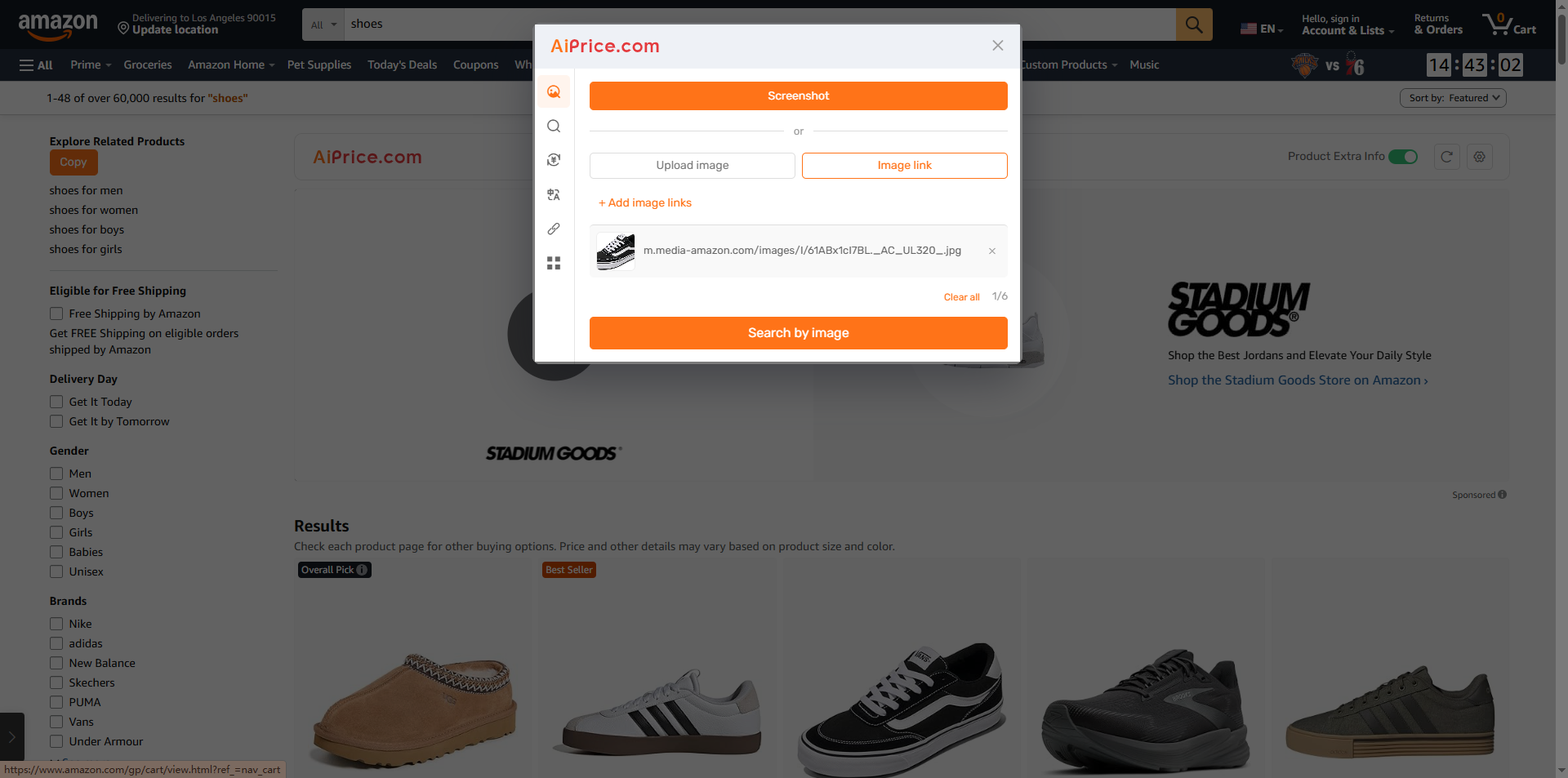
The search window gives you three options: Screenshot, Upload image, and Image link. For pictures you find on a webpage, start with Screenshot or Image link.
Search with a screenshot
Screenshot search is useful when the product is already on your screen. It also lets you select one item from a picture that contains several products.
For example, if a webpage shows several bags together and you only want to search for one, you can capture just that bag.
To get started:
- Right-click on the webpage and open AiPrice’s image search tool.
- Click Screenshot.
- Drag to select the product you want to search for.
- Complete the capture and view the image search results.
Try to include the whole product in your selection. If several items are visible, keep the selection focused on the one you want to find.
You can use this method while browsing product listings, reading a product detail page, or working in a seller dashboard.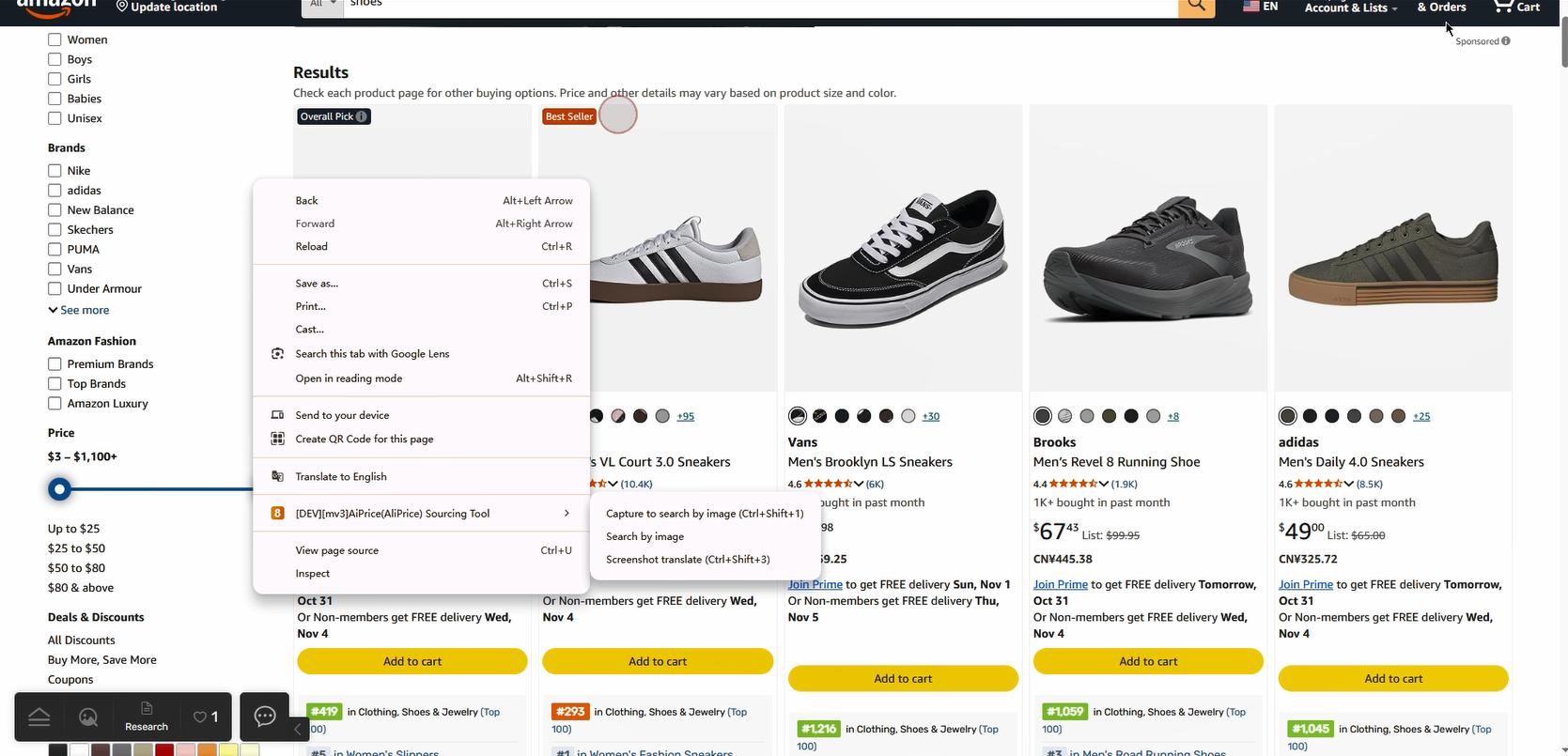
Search with an image URL
Already have a link to the product picture? Select Image link to search with it directly.
An image URL is the address of the picture itself. You can usually get it by right-clicking the picture and copying its image address.
Then follow these steps:
- Copy the image URL.
- Right-click on the webpage and open AiPrice’s image search tool.
- Select Image link.
- Paste the URL into the text box.
- Click Search by image to view the results.
The text box also accepts multiple image URLs, so you can paste several at once.
Which option should you use?
Choose the option that fits where your picture is:
- The product is on your screen: use Screenshot to select it.
- You have a direct link to the picture: paste it under Image link.
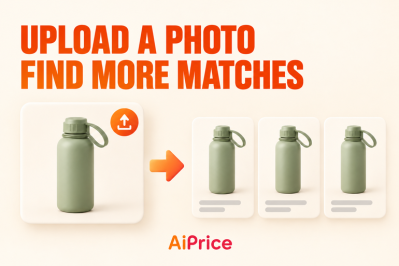
- The picture is saved on your computer: choose Upload image. For the full walkthrough, read How to Upload a Product Photo and Find More Matches.
Once your results appear, you can switch between marketplaces and explore the available products. For help with sorting and filtering, read How to Filter Image Search Results and Compare Products.
The next time a product catches your eye, right-click to open AiPrice and start searching. Visit the AiPrice search by image page for more ways to search and source products.

















Log in or sign up to post a question