
 USD / Language





How to Filter Image Search Results and Compare Products
Your image search has returned a page full of products. Where should you start?
With AiPrice, you can choose a marketplace, adjust the sorting, and use the available product information to narrow your results. Then open the listings you want to explore further.
Start with one marketplace
Choose the marketplace that fits what you’re doing.
For example, you might select 1688 when looking for suppliers, then switch to another marketplace to explore its products and prices.
If you’re new to AiPrice, start with one marketplace and get familiar with its results before moving to the next.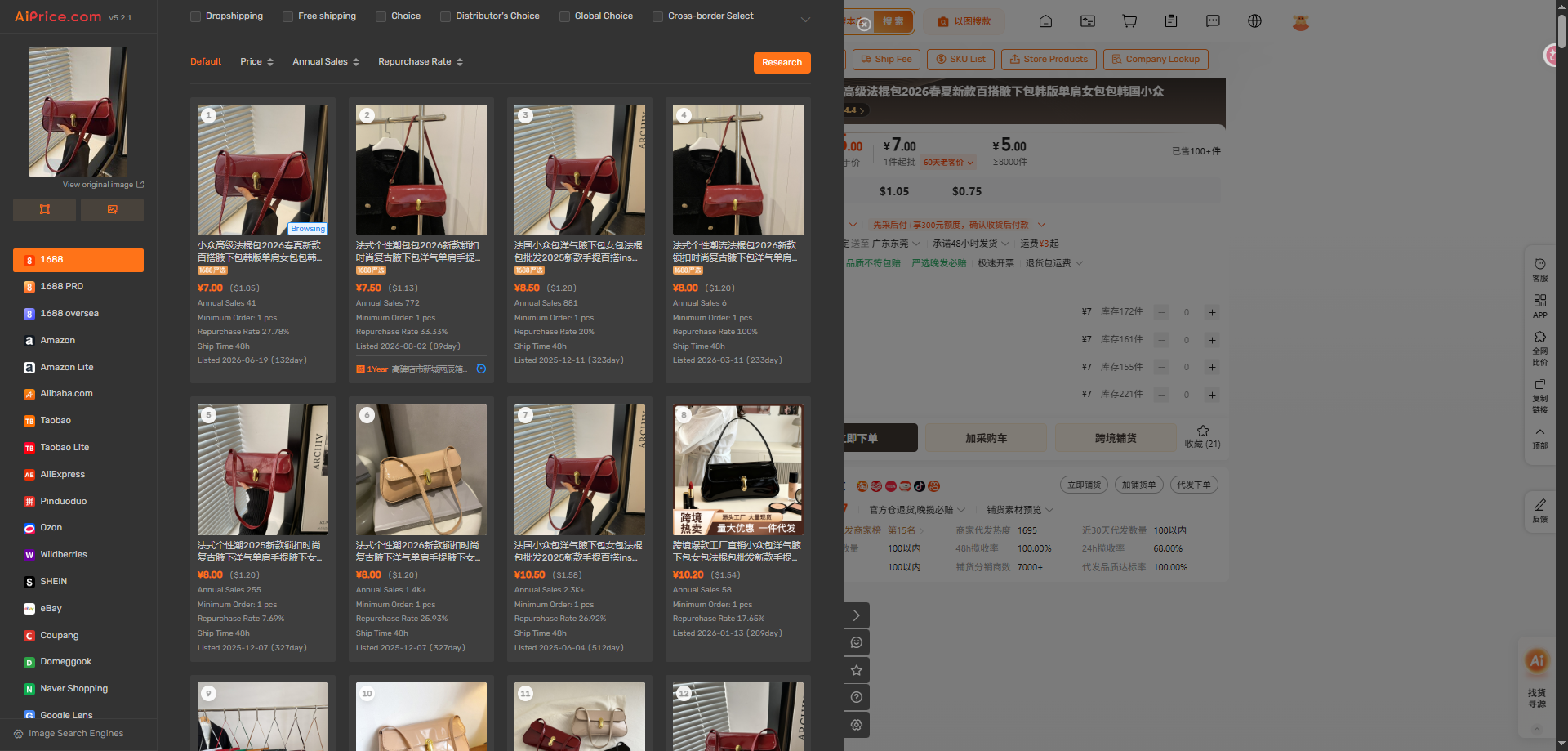
Sort by what matters to your search
Sorting helps bring the products you want to examine closer together.
For example, the 1688 results page includes:
- Default
- Price
- Annual Sales
- Repurchase Rate
If you want to compare prices first, select Price. If you’re interested in sales information, select Annual Sales.
You can change the sorting as your focus changes. For instance, when researching canvas bags, you might start by browsing the designs, then sort by price to compare the options that caught your attention.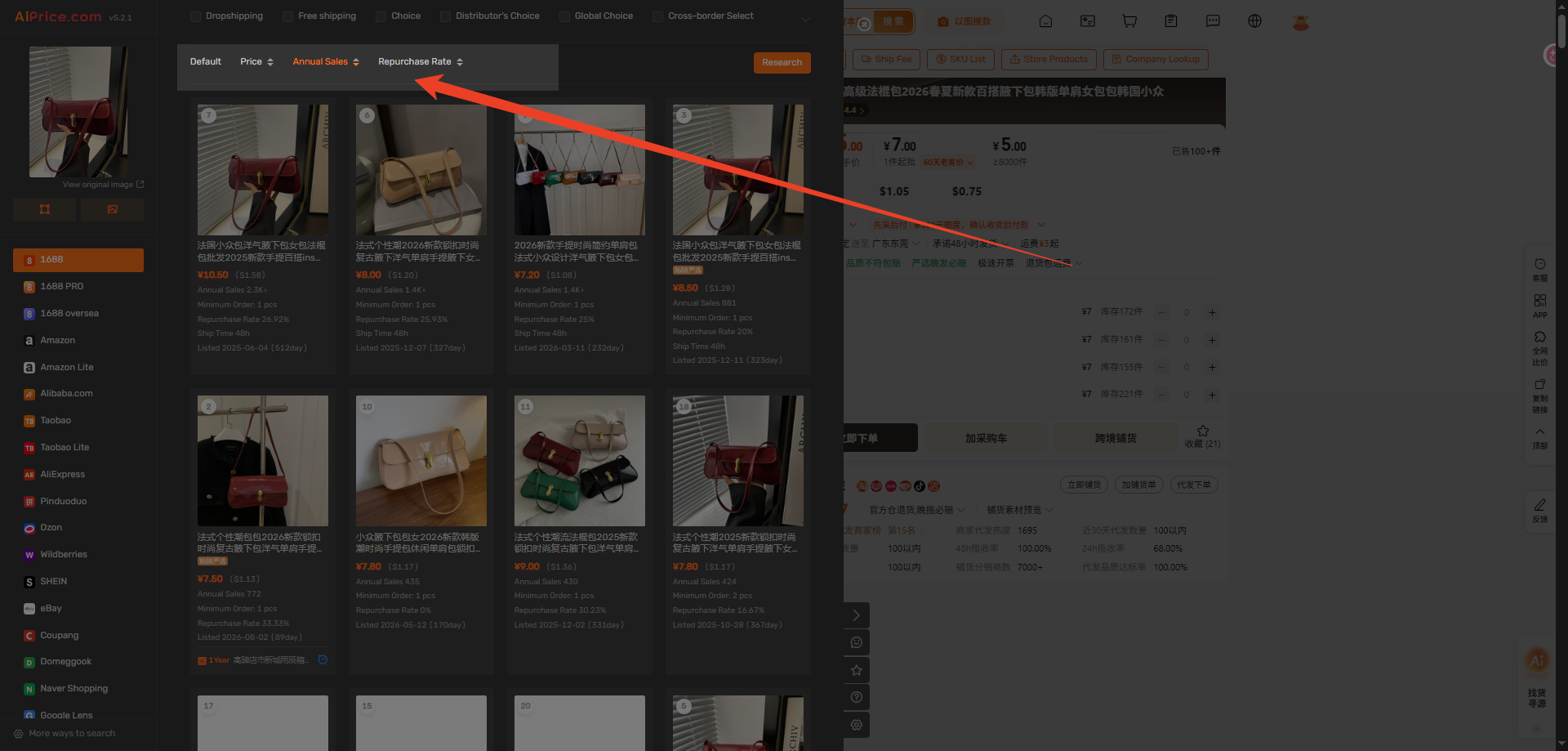
Use filters to narrow the results
Next, use the available filters to focus your search.
On the 1688 results page, options include Dropshipping, Free shipping, and Rating, along with shipping-related filters such as Delivery within 48 hours.
Choose the filters that fit your sourcing needs, then continue browsing the results.
For example, if you’re exploring products for a dropshipping workflow, start with Dropshipping. If shipping is part of your comparison, use the relevant shipping filters.
Read the information on each product card
Product cards let you review several details before opening a listing.
On 1688 results, you can see information such as the price, Annual Sales, Minimum Order, and Repurchase Rate.
Minimum Order tells you the minimum quantity listed for an order, which is useful when you’re deciding which products to investigate.
Scan the pictures first, then use the displayed information to pick a few products for a closer look.
Open product pages to keep comparing
Click a product to open its marketplace page. From there, review the specifications, available options, pricing, and store information.
You can open several products and switch between their pages as you compare them. Return to AiPrice whenever you want to adjust the sorting, change filters, or explore another marketplace.
If you want to search with a different picture, read Right-Click Image Search: Find Products with Screenshots or Image URLs or How to Upload a Product Photo and Find More Matches.
For more ways to search, visit the AiPrice search by image page.














Log in or sign up to post a question