
 USD / Language




How to Get Alerts When a Product’s Price Changes
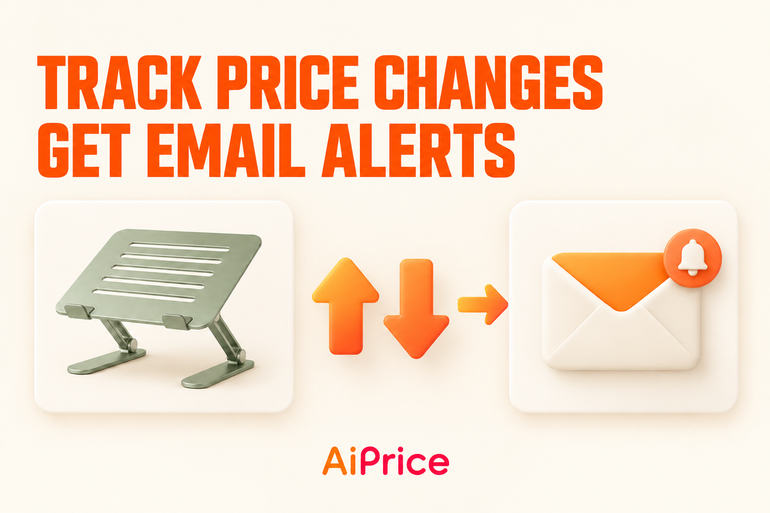
Found a product you want to keep following? AiPrice’s Track Price feature lets you set price conditions and receive email alerts when those conditions are met.
You can follow price drops, price rises, or both, and choose how long to track the product.
Here’s how to set it up for a computer stand.
Open the Price alerts window
With AiPrice installed and enabled, open the computer stand’s product detail page and find the Price History panel.
Click Track Price below the chart. This opens the Price alerts window, where you can review the current price and configure your alerts.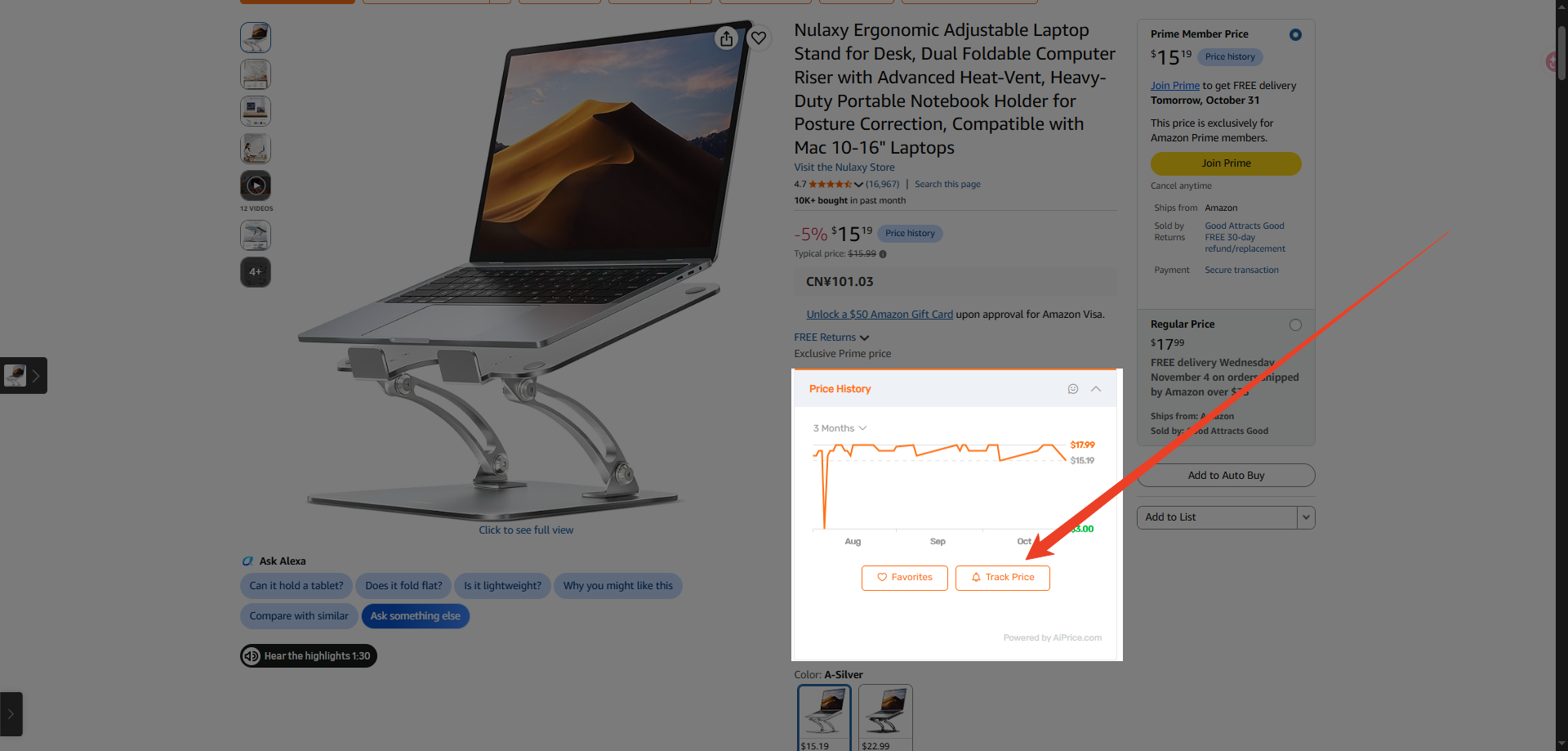
Check the email address
Look at the Email section at the top of the window.
If an address is already displayed, check that it’s the one where you want to receive alerts. If no address is set, click Add Email and follow the on-screen steps.
Once your email is ready, continue with the price conditions.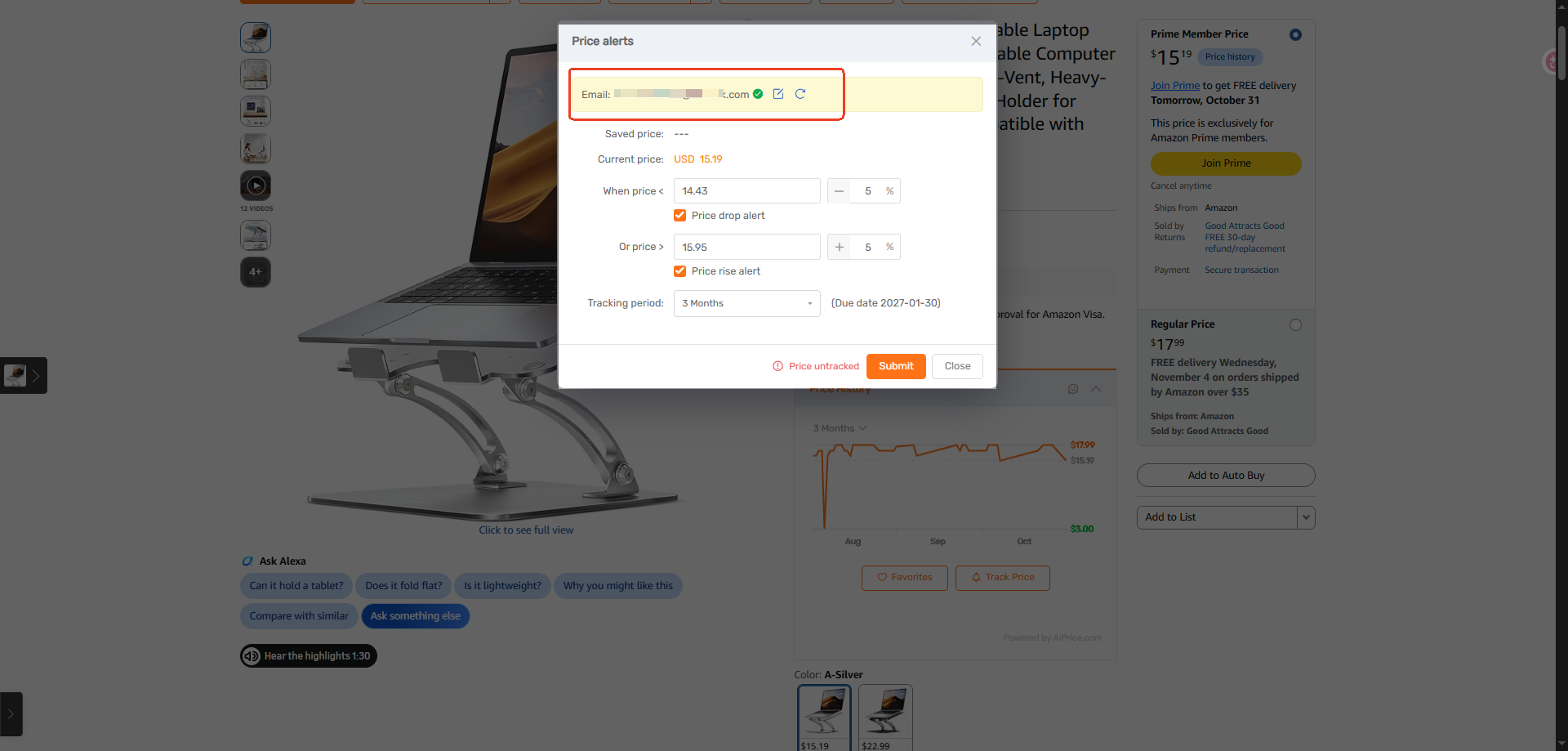
Set a price drop alert
To receive an alert when the stand’s price falls below a certain amount:
- Find When price <.
- Enter the price you want to follow.
- Enable Price drop alert.
The window also includes a percentage field beside the price condition. Use the available price and percentage fields to set your preferred threshold, then check the amount shown.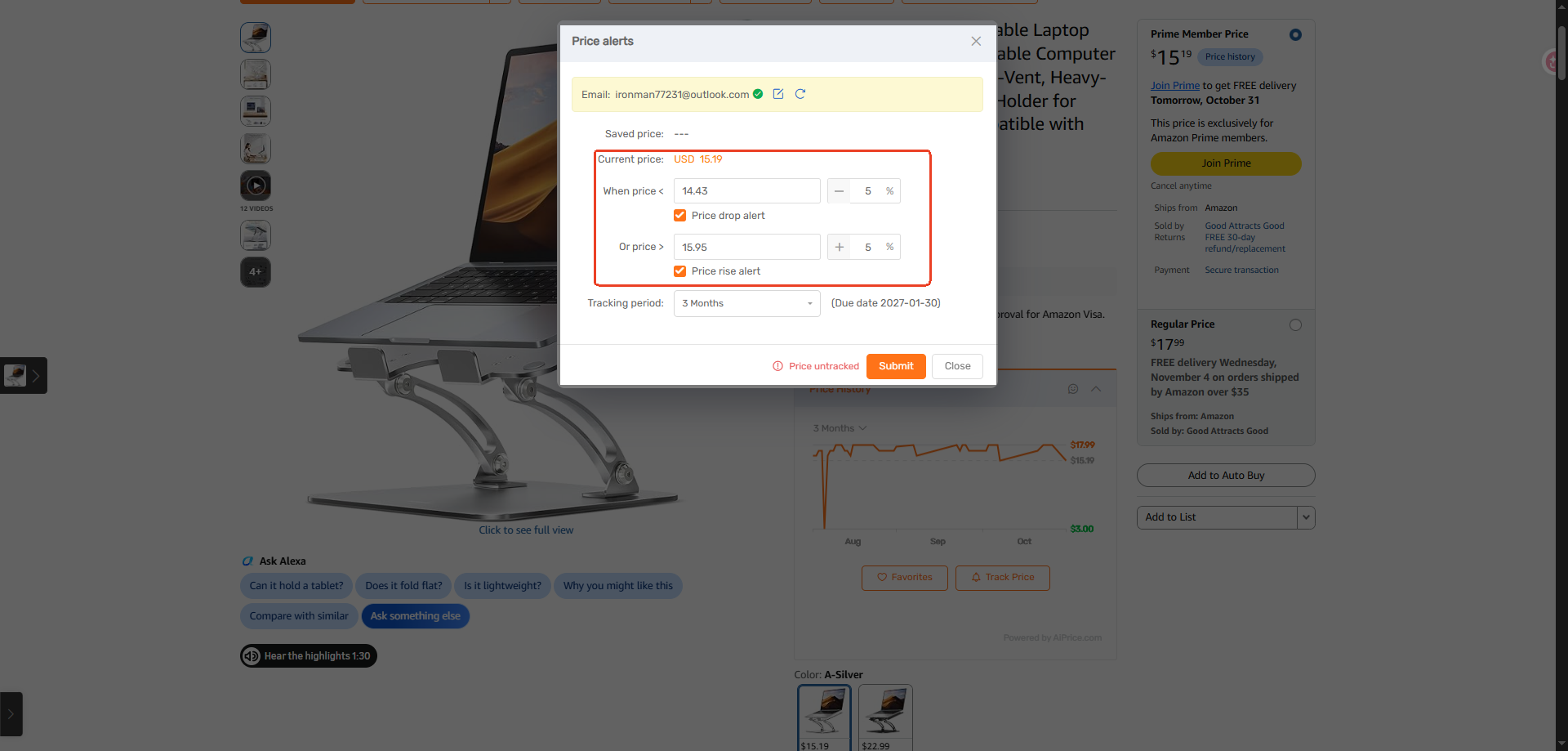
Add a price rise alert if you need one
To follow an increase, use Or price >.
Enter the upper price you want to monitor and enable Price rise alert.
For example, if you’re keeping an eye on the sourcing cost of a computer stand, you can use this option to receive a notification when its price rises above your chosen amount.
Choose the alerts that fit your needs:
- Enable Price drop alert to follow a decrease.
- Enable Price rise alert to follow an increase.
- Enable both and set a condition for each to follow changes in either direction.
Choose the tracking period
Under Tracking period, choose how long you want AiPrice to follow the product:
- 3 Months
- 6 Months
- 1 Year
Check the Due date beside the selection to confirm when tracking will end.
This setting controls how long the product will be tracked going forward.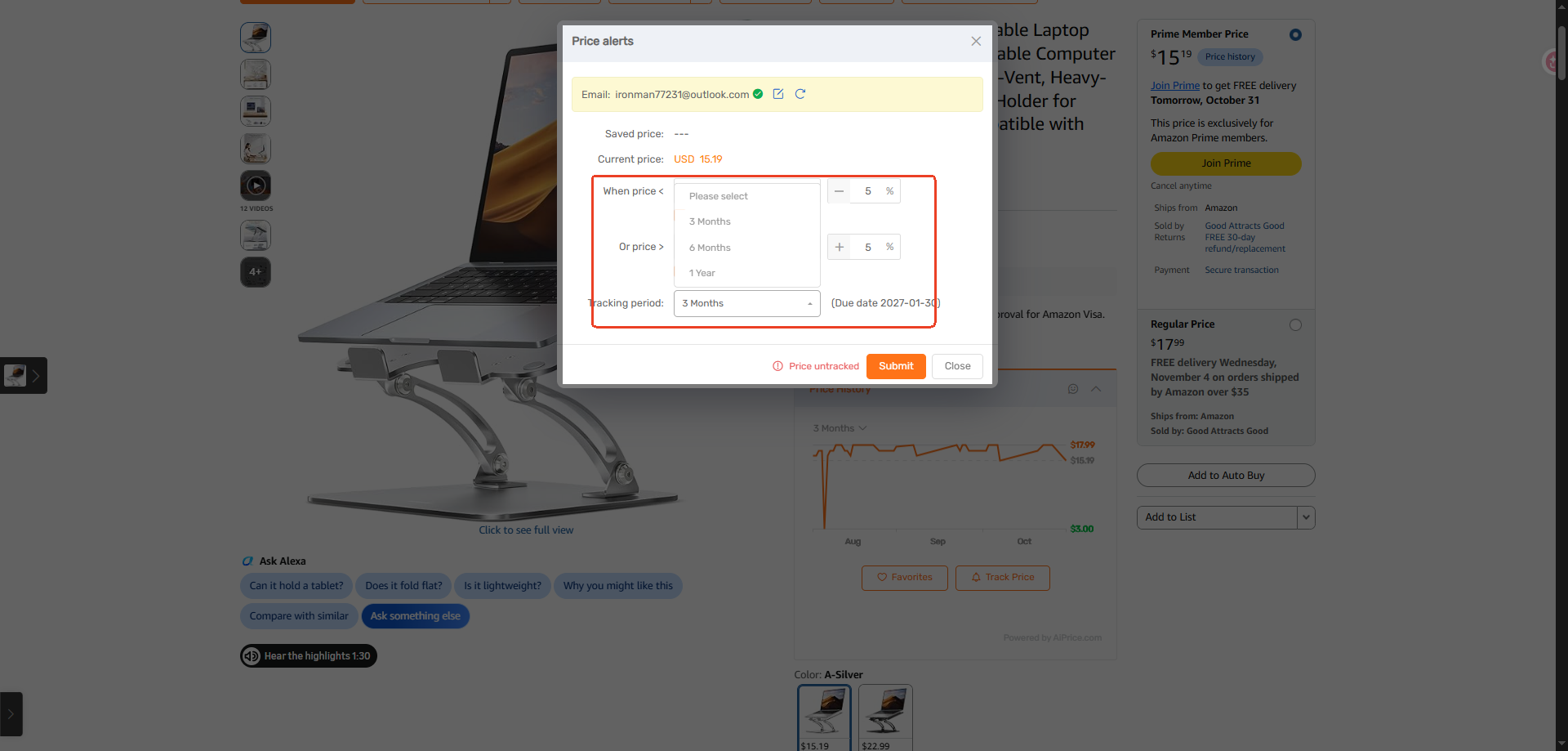
Review and submit
Before saving, check the email address, price conditions, selected alerts, and tracking period.
Click Submit to finish setting up the alert.
If you want to review earlier prices before choosing your thresholds, read Is That Sale Price the Lowest Yet? How to Check Price History.
For more ways to use the feature, visit the AiPrice price history page.
















Log in or sign up to post a question