
 USD / Language




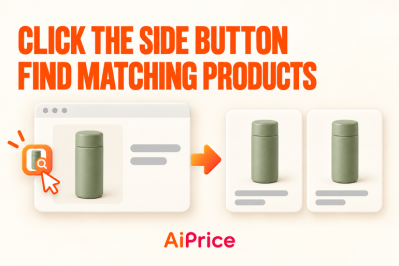

How to Find Suppliers Using Product Images from Your Seller Dashboard
When you’re organizing products in a seller dashboard or a web-based ERP system, you often already have the picture you need.
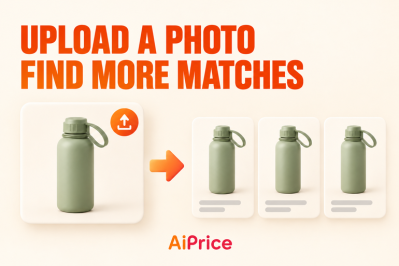
With AiPrice, you can use that picture to look for products on other marketplaces. Open the image search tool from the right-click menu, then search with a screenshot or an image URL.
Start with a product in your dashboard
With AiPrice installed and enabled, open the seller dashboard or web-based ERP system you’re working in.
For example, you might be preparing a canvas bag listing and want to explore more suppliers. Find the product picture and bring it into view.
You can then start your search without leaving that workflow.
Capture the product picture
If the picture is visible on your screen, use screenshot search:
- Bring the product picture into view.
- Right-click on the webpage and open AiPrice’s image search tool.
- Click Screenshot.
- Drag to select the product picture.
- Complete the capture and view the results.
If your dashboard displays several products in a row, select the one you want to search for. You can repeat the process for other items as you work through your listings.
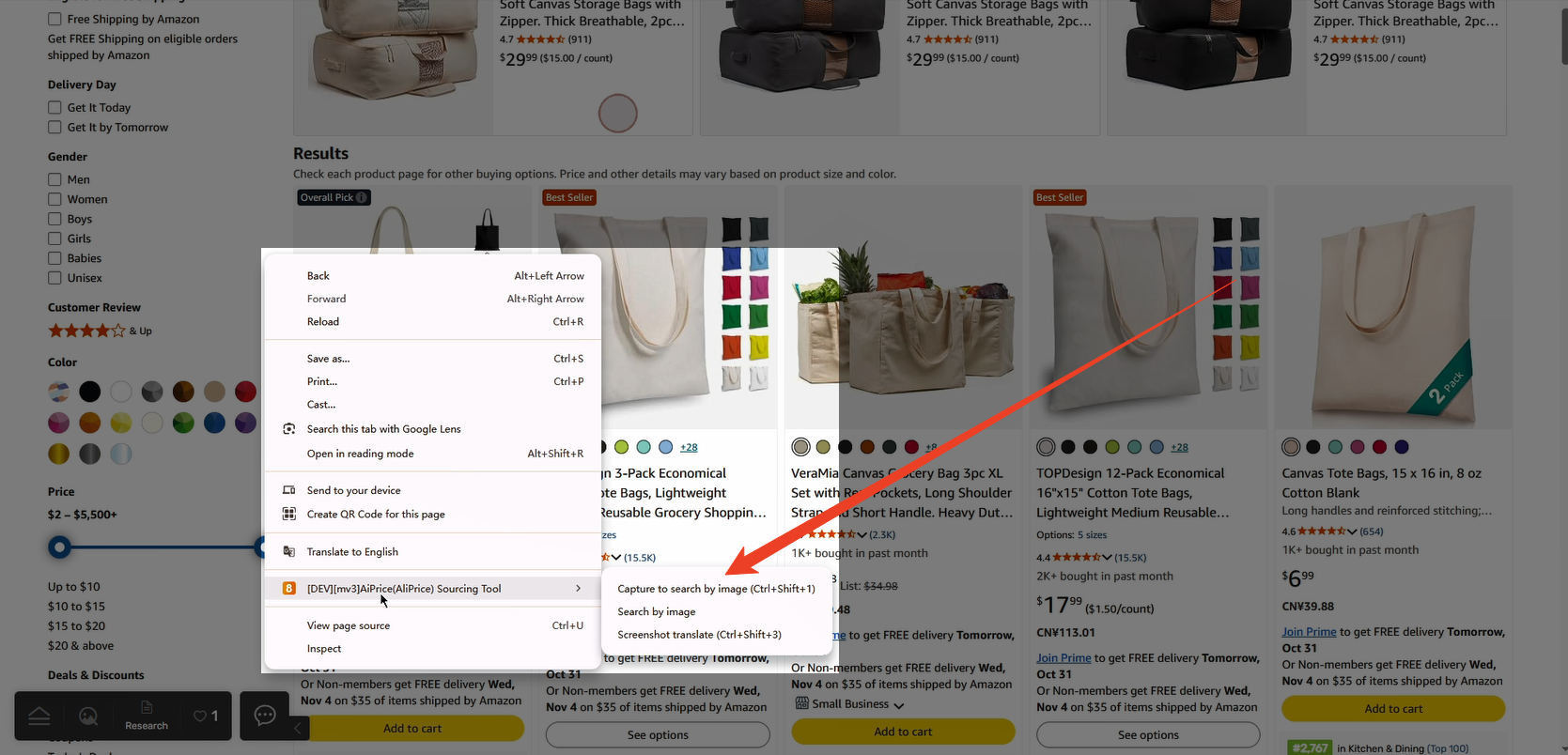
Use an image URL if you already have one
Some product workflows give you direct access to image URLs. If you’ve already copied one, you can use it in AiPrice.
Open the search window, select Image link, and paste the URL. Then click Search by image.
This is useful when you’re organizing product information and already have the image link ready to use.
For a detailed walkthrough of both methods, read Right-Click Image Search: Find Products with Screenshots or Image URLs.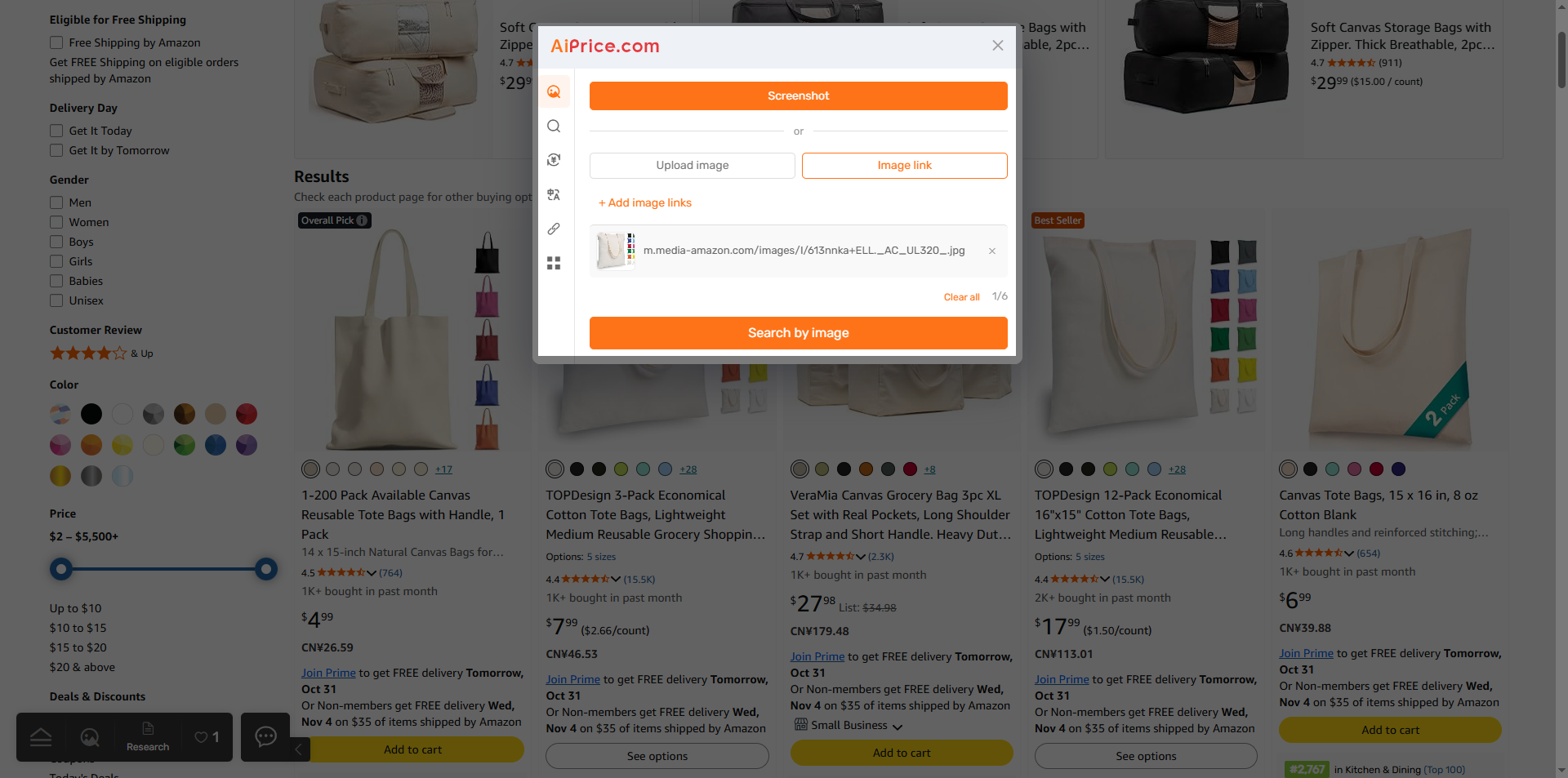
Choose where to look for suppliers
Once your results appear, select the marketplace you want to explore.
For example, choose 1688 to browse its product results. You can also switch marketplaces to look for more options using the same picture.
Open the products that interest you to review their specifications, prices, and store information.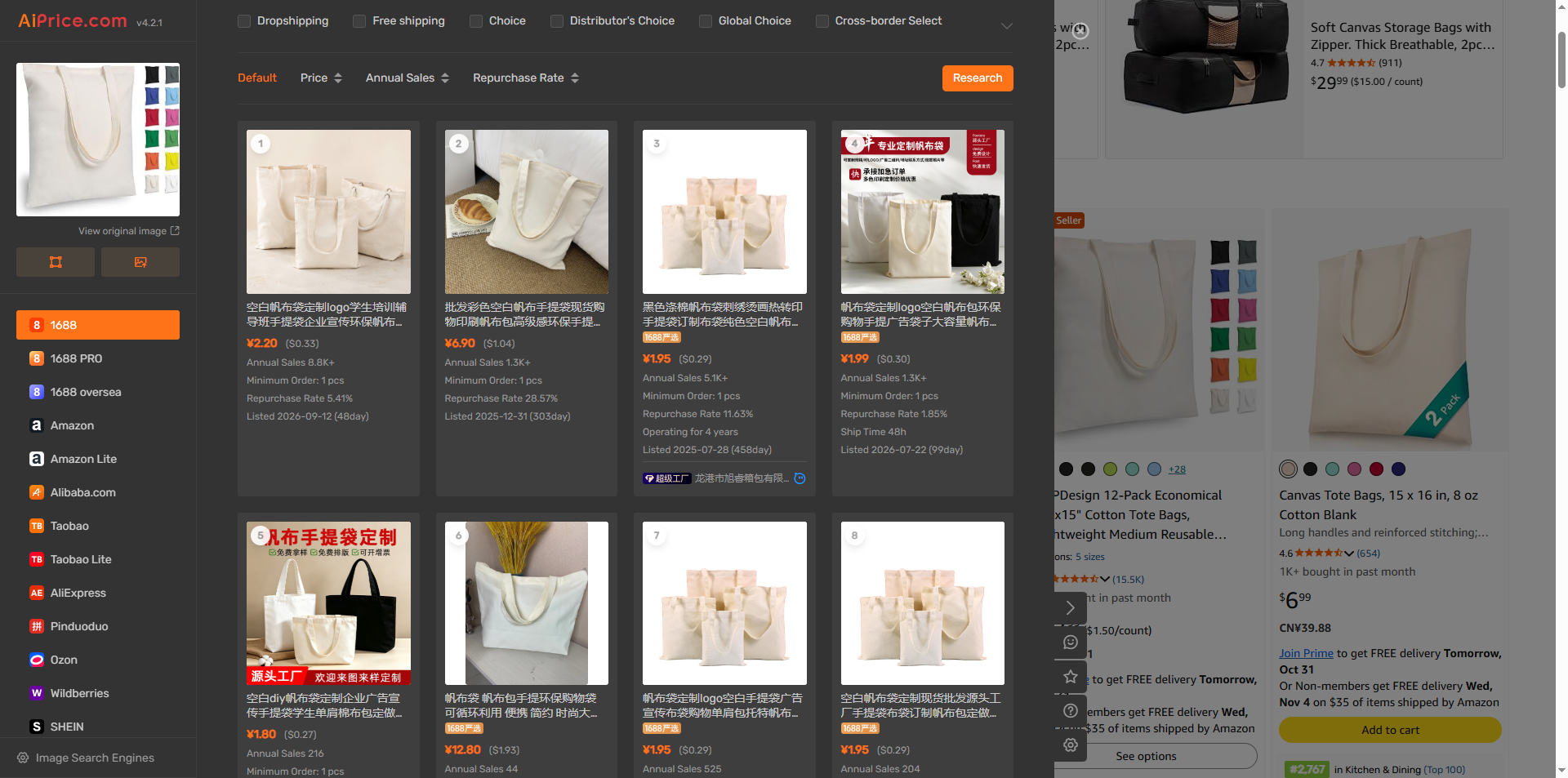
To learn how to narrow the results, read How to Filter Image Search Results and Compare Products.
With this workflow, a product picture in your dashboard becomes a starting point for further sourcing. Visit the AiPrice search by image page for more search methods.
















Log in or sign up to post a question