
 USD / Language





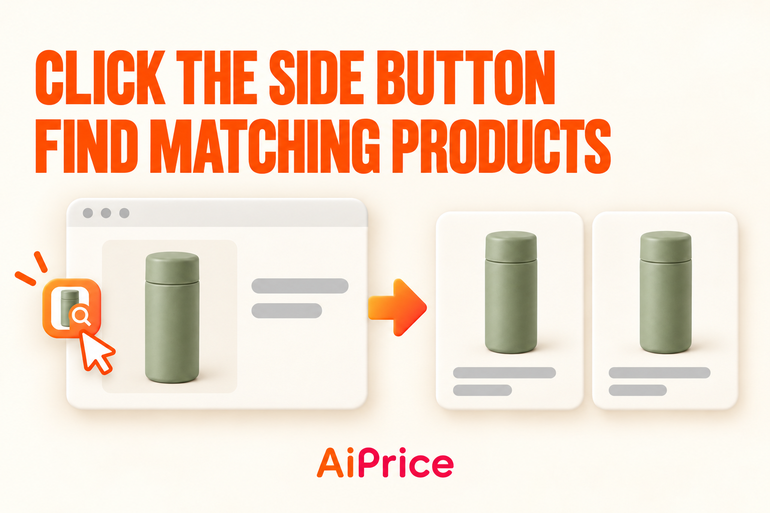
How to Use the Image Search Button on a Product Detail Page
You’ve opened a product, looked through the pictures, and read the description. Now you want to find matching products on other marketplaces.
With AiPrice, you can start that search from the product detail page. The image search entry on the left lets you search using the current product picture without downloading it first.
Open the product you want to research
With AiPrice installed and enabled, open a product detail page.
For example, you might be looking at a vacuum flask and want to explore sourcing options on 1688. You can start from the page you’re already viewing.
Find the product thumbnail on the left
Look along the left edge of the page for the small product thumbnail with an arrow. Click it to open AiPrice’s image search panel.
The steps are straightforward:
- Open the product detail page.
- Find the AiPrice product thumbnail on the left.
- Click it to search using the product image.
- Browse the results.
This entry is useful when you’re already researching a particular product and want to keep going. You can move straight from reading its details to exploring products on other marketplaces.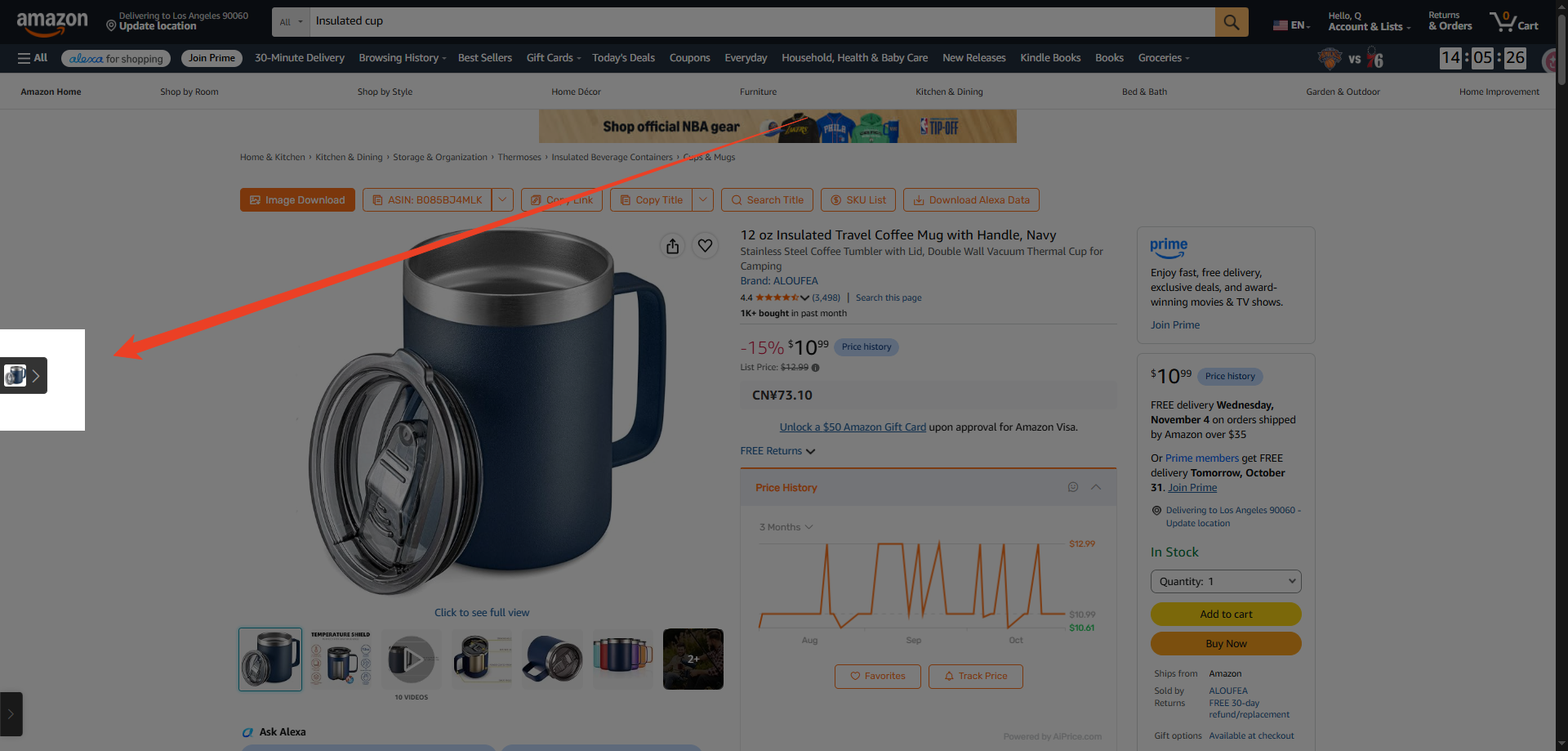
Choose a marketplace
In the results panel, select the marketplace you want to search.
If you’re looking for sourcing options on 1688, choose 1688. To explore another marketplace, switch to it in the same panel.
Open any products you want to examine further, then review their specifications, prices, and store information.
For a closer look at the results page, read How to Filter Image Search Results and Compare Products.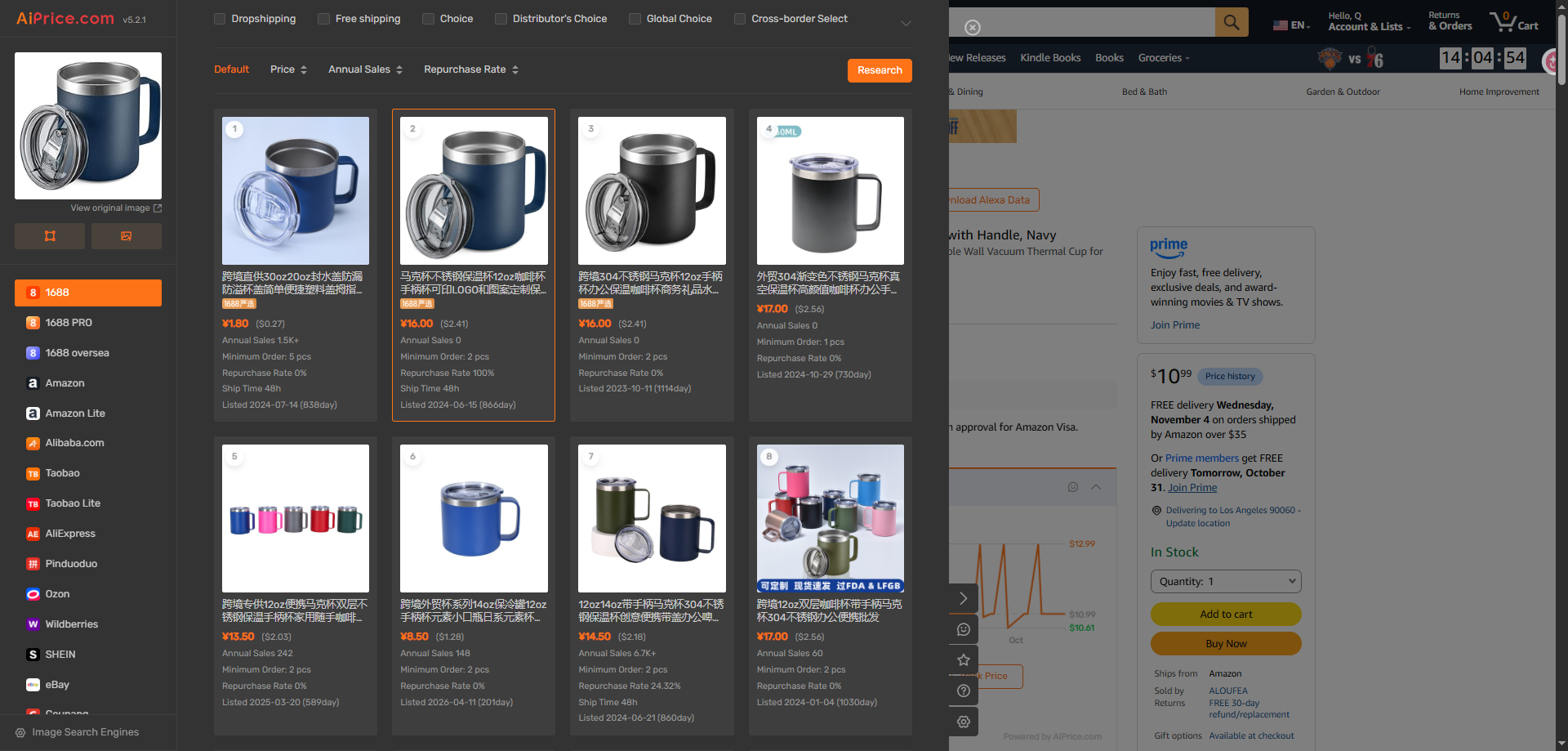
Use a screenshot to search a specific part of a picture
Sometimes a picture shows several products, and you only want to search for one. You may also spot a different picture further down the product description.
In either case, open AiPrice from the right-click menu and click Screenshot. Drag to select the product you want to search for.
If you already have the picture’s URL, choose Image link, paste it, and click Search by image.
You’ll find the full walkthrough in Right-Click Image Search: Find Products with Screenshots or Image URLs.
Visit the AiPrice search by image page to explore the other search options.


















Log in or sign up to post a question