
 USD / Language




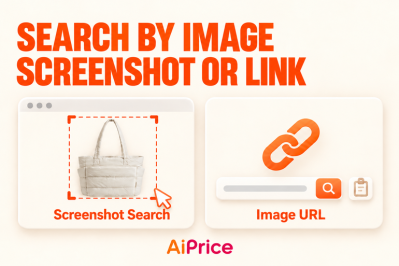

How to Find Matching Products While Browsing Product Listings
Spotted a product you’d like to explore while browsing Ozon, Amazon, or Wildberries? With AiPrice, you can search directly from its picture and look for matching products across marketplaces.
You don’t need to open the product detail page or save the image first. Start with a listing that interests you, then use image search to see what else is available.
Choose a product from the listing page
With AiPrice installed and enabled, browse a marketplace as you normally would.
For example, you might be researching canvas bags for your store when a particular pocket design catches your eye. You can use that product’s picture to start your search.
Find the image search button
Look for the AiPrice image search button on the product picture. The search icon’s tooltip reads “Find the same item, compare prices.”
To search:
- Open a product listing or category page.
- Find a product you want to explore.
- Click the AiPrice image search button on its picture.
- Wait for the results to appear.
You can repeat this as you browse, searching for each design that interests you.
If the picture doesn’t show a search button, open AiPrice through the right-click menu and use Screenshot or Image link instead. Read Right-Click Image Search: Find Products with Screenshots or Image URLs for the steps.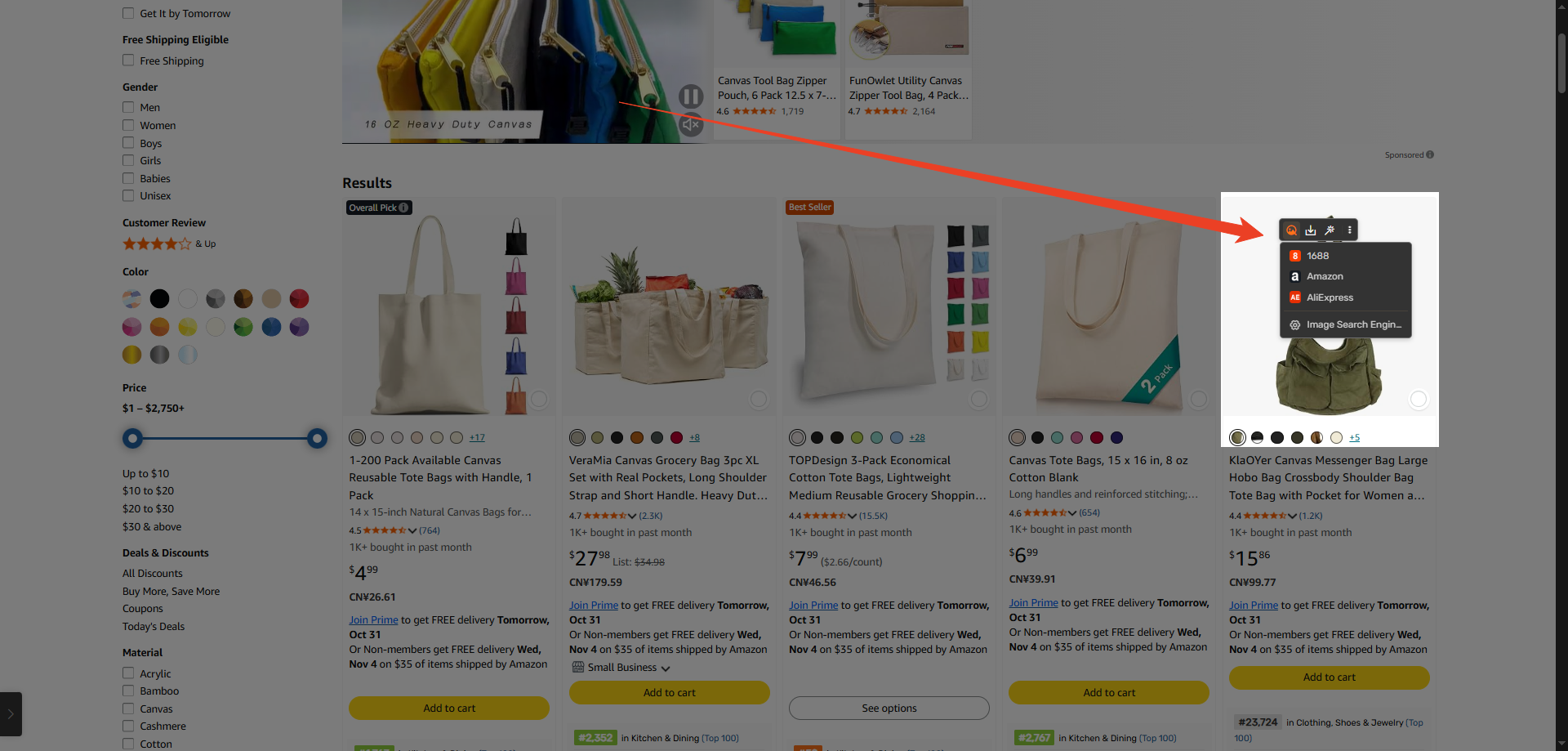
Switch marketplaces to explore more options
Once the results appear, select the marketplace you want to browse.
For example, if you found a bag on Amazon and want to look for suppliers on 1688, choose 1688 in the results panel. You can then switch to another marketplace to explore its results using the same picture.
This gives you a way to keep searching without having to come up with a new product name for each marketplace.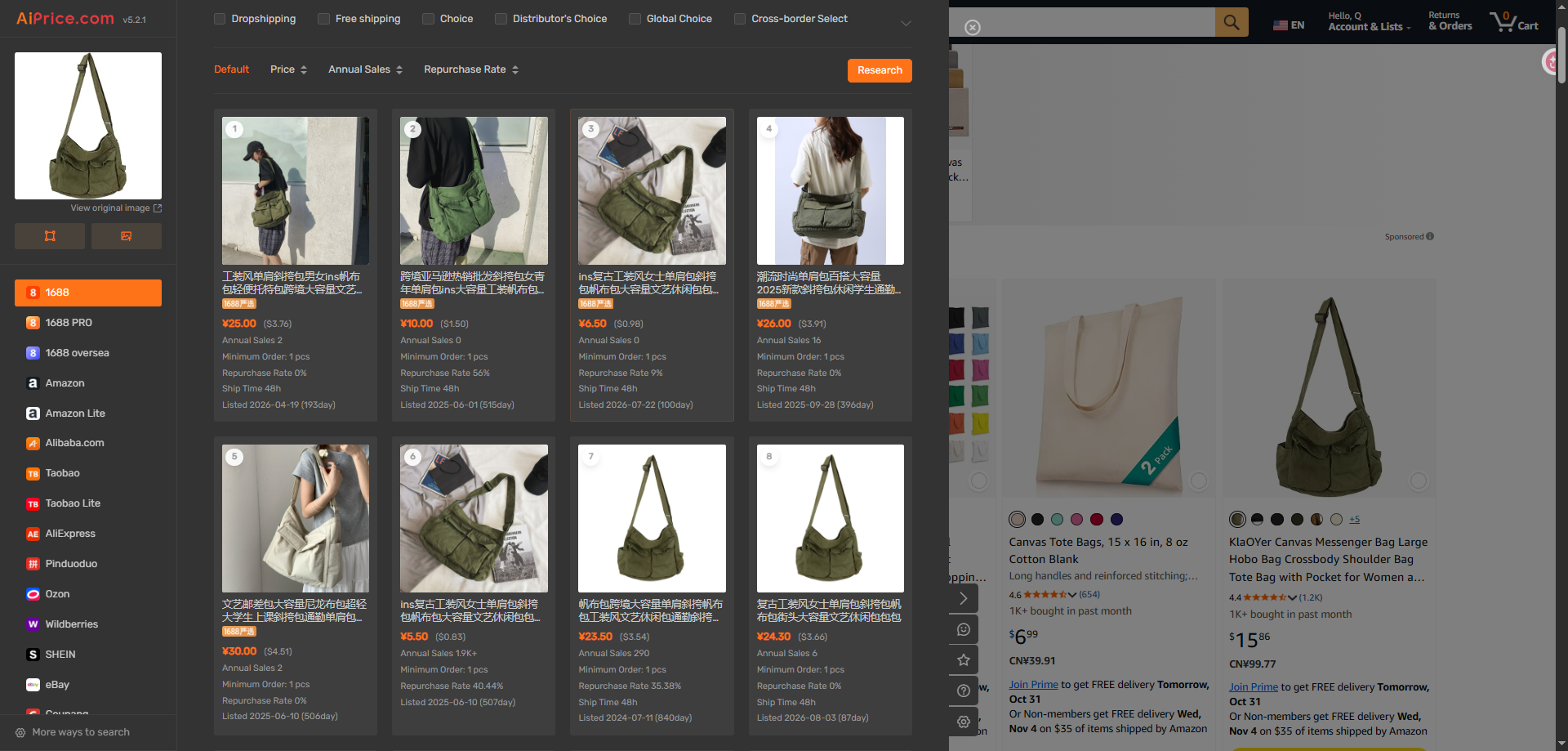
Open the products you want to investigate
Browse the pictures and available product information, then open the listings that interest you.
If you have a long list of results, read How to Filter Image Search Results and Compare Products for help with sorting and narrowing your search.
Already on a product detail page? See How to Use the Image Search Button on a Product Detail Page.
For more ways to search, visit the AiPrice search by image page.
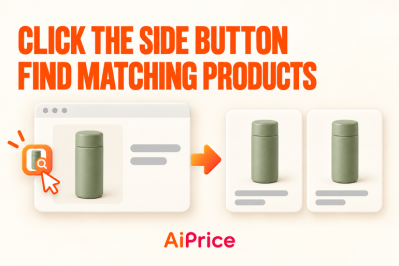
















Log in or sign up to post a question