USD / שפה


מדריך שדרוג ההרחבה של Chrome במצב לא מקוון
מדריך וידאו
שלב אחר שלב מדריך
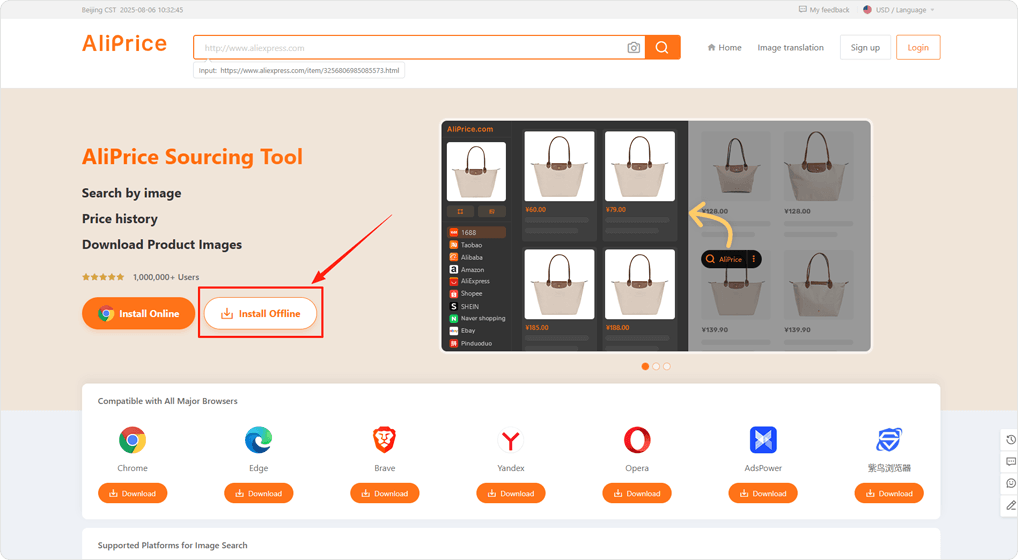
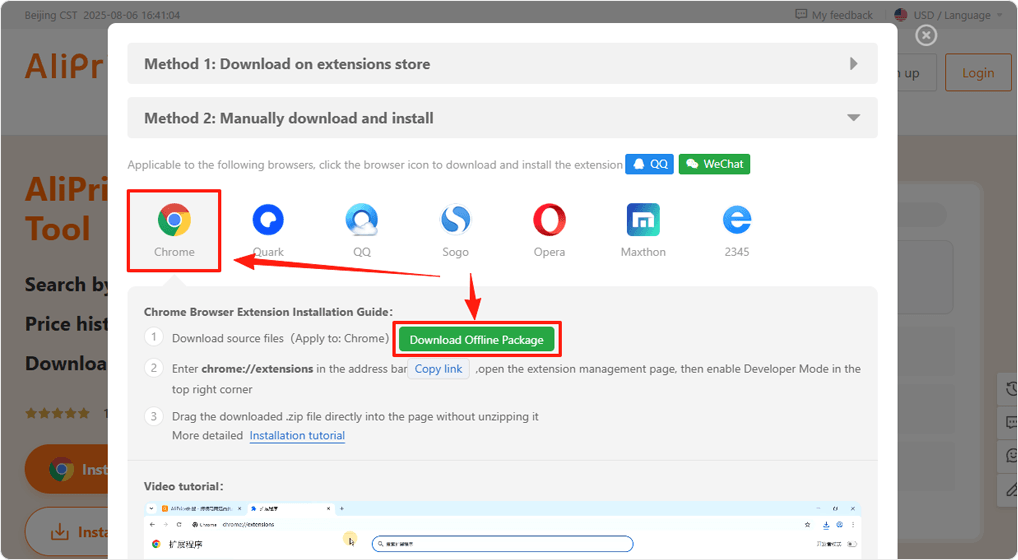
בחלון הקופץ הזה, לחץ על סמל דפדפן Chrome, ואז לחץ על כפתור הורד חבילת התקנה לא מקוונת כדי להוריד את חבילת ההרחבה למחשב שלך, או לחץ ישירות כאן הורד חבילת התקנה לא מקוונת
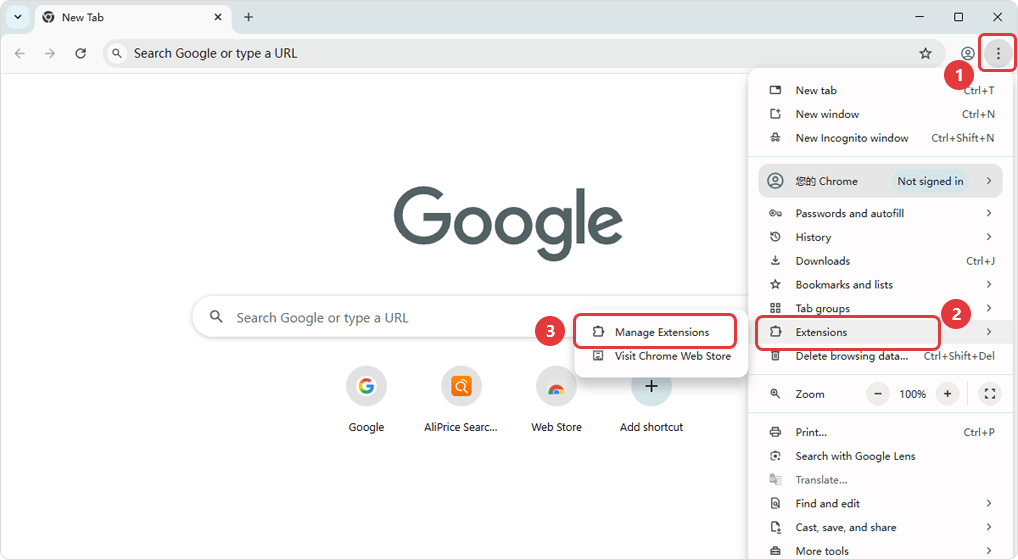
בפינה הימנית העליונה של הדפדפן, לחץ על “” סמל הרחבות ניהול הרחבות ברצף
הפעל את מצב מפתח
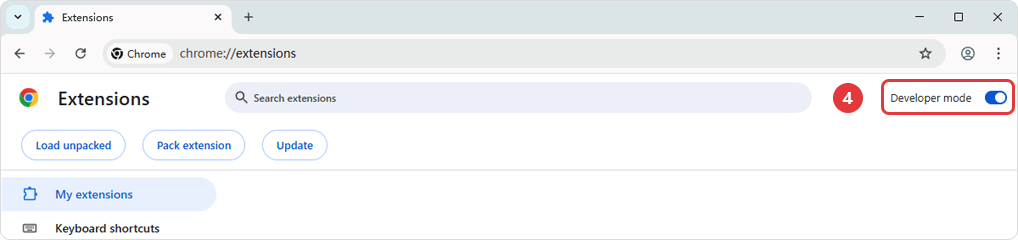
אם אינך מוצא את הכניסה, לחץ כאן כדי לצפות במדריך מפורט
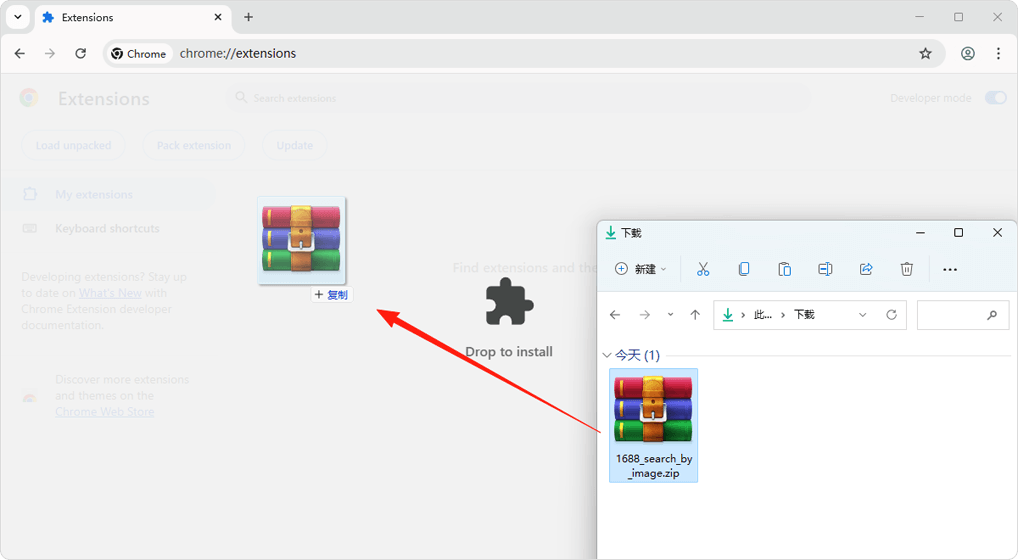
לאחר הפעלת מצב מפתח, גרור את קובץ ההרחבה שהורדת (אין צורך לפתוח את הקובץ) ישירות לדף. לאחר ההתקנה, ניתן למחוק את קובץ החבילה המקורי ללא השפעה על פעילות ההרחבה.
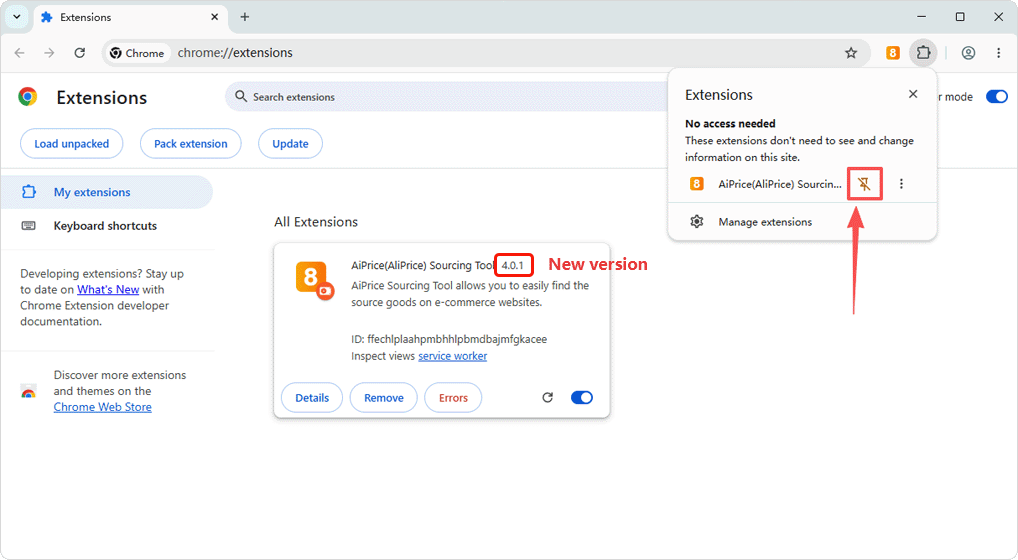
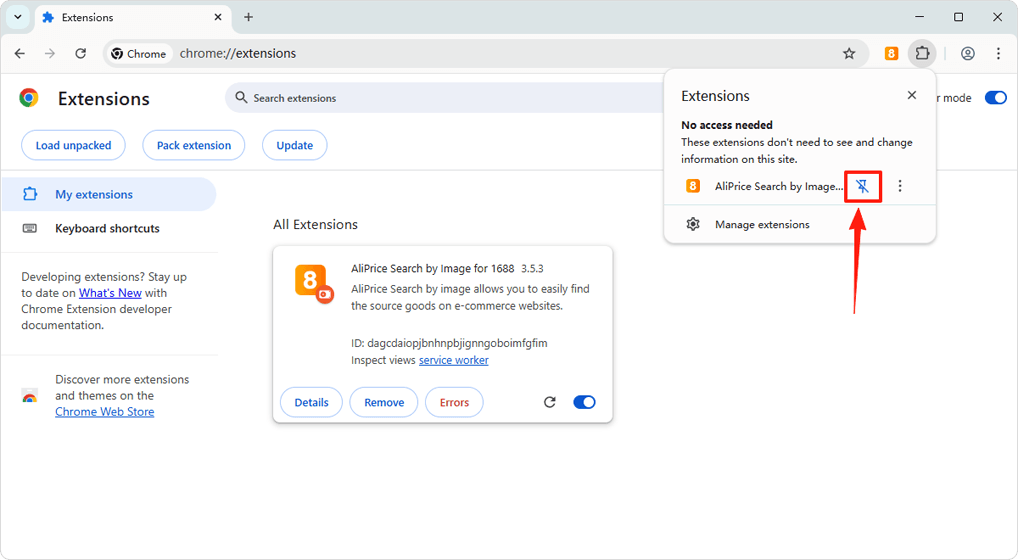
לאחר ההתקנה, לחץ על סמל הסיכה כדי להצמיד את סמל ההרחבה לפינה הימנית העליונה של הדפדפן.
טיפ: אם מופיעה שגיאה או “Service Worker (invalid)” לאחר ההתקנה, התעלם מכך — ההרחבה תעבוד כרגיל.
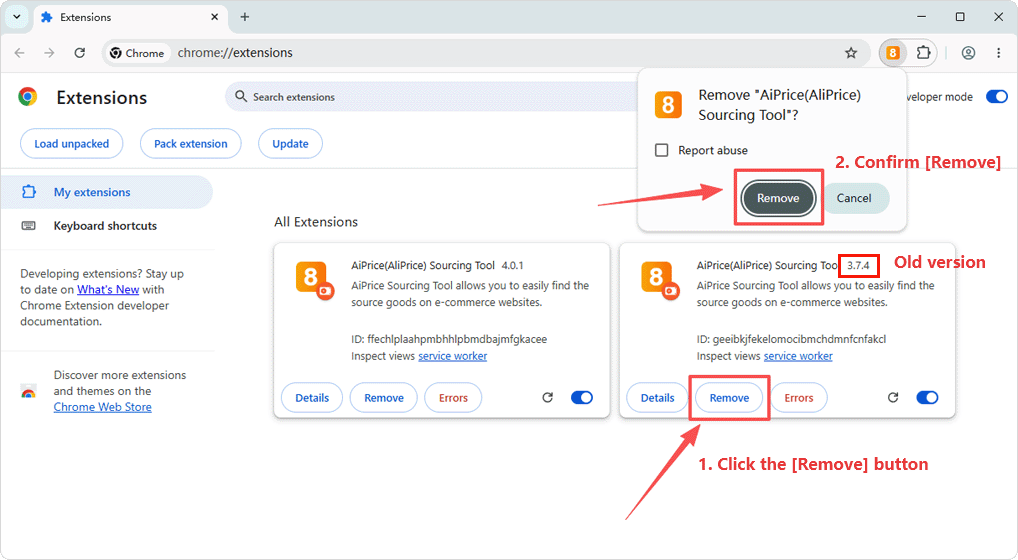
חזור לדף ניהול הרחבות, לחץ על כפתור הסר בתוך ההרחבה שברצונך לשדרג. תופיע תיבת אישור, לחץ שוב על הסר כדי למחוק את הגרסה הישנה.
לאחר ההתקנה, לחץ על סמל הנעיצה כדי לנעוץ את סמל ההרחבה בפינה הימנית העליונה של הדפדפן.
הערה: אם מופיעה שגיאה לאחר ההתקנה, או אם Service Worker מוצג כ-(לא חוקי), התעלם מכך – ההרחבה תפעל כרגיל.